Getting Ready to Teach - Part 1: Class Setup Checklist
Last updated: April 23, 2026
Getting ready to teach your first class? Coming back to teach with us after the summer off and looking for a refresher? Below is a step-by-step guide to help you prepare to teach an Air Reading class.
Quick overview
- What: How it is recommended to set up and start your Air Reading class—from logging in to submitting feedback.
- Why: A clear setup and consistent routines can help you teach confidently, keep students engaged, and help ensure all lessons run smoothly.
- How: One possible workflow includes signing in, preparing your slides, setting up your virtual classroom, beginning to teach as soon as a student arrives, and submitting feedback promptly after class.
Table of contents
- Step 1: Sign in with your Google account
- Step 2: Go to the Teacher Portal
- Step 3: Is the class on Zoom or Google Meet?
- Step 4: Start the class on time and begin teaching
- Step 5: Enter feedback
- Checklist
Step 1: Sign in with your Google account
- Open a Google Chrome browser.
- Go to the Teacher Portal and select Continue with Google.
- Sign in with the Google account that you use with Air Reading.
Step 2: Go to the Teacher Portal
Access your classes in the Teacher Portal.
- Click My classes > Upcoming classes.
- Find your assigned class and click the lesson link in the Lesson column.
Prepare your Google lesson slides.
- Click the down arrow next to Slideshow > Select Presenter view.
- Resize your screen to view both the Teacher Directions and the lesson slides.
Step 3: Is the class on Zoom or Google Meet?
Start the lesson.
- Go to the Upcoming classes tab in the Teacher Portal.
- Locate your assigned class and click the red Start Zoom or Start Google Meet button to launch the platform.
If the class is on Zoom:
- Click Share > Advanced (or More, depending on the version of Zoom you are using) > Portion of Screen > Choose Presenter layout (Content Only) > Share.
- Adjust the green box so that only the lesson slides are visible.
- Keep the Teacher Directions visible to the side. Avoid placing the Teacher Directions too far off-screen or on a second monitor, as this can make it harder to maintain eye contact with students—essential for rapport and a positive learning experience.
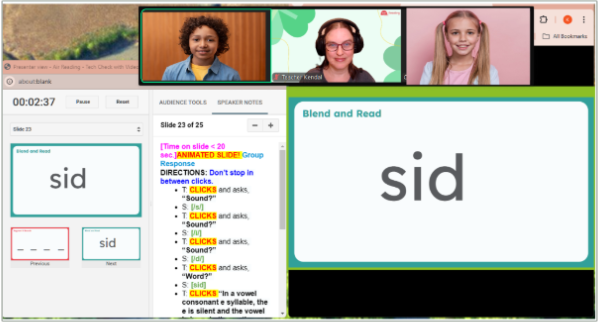
If the class is on Google Meet:
- Resize the browser window to remove any black space around the sides of the lesson slides.
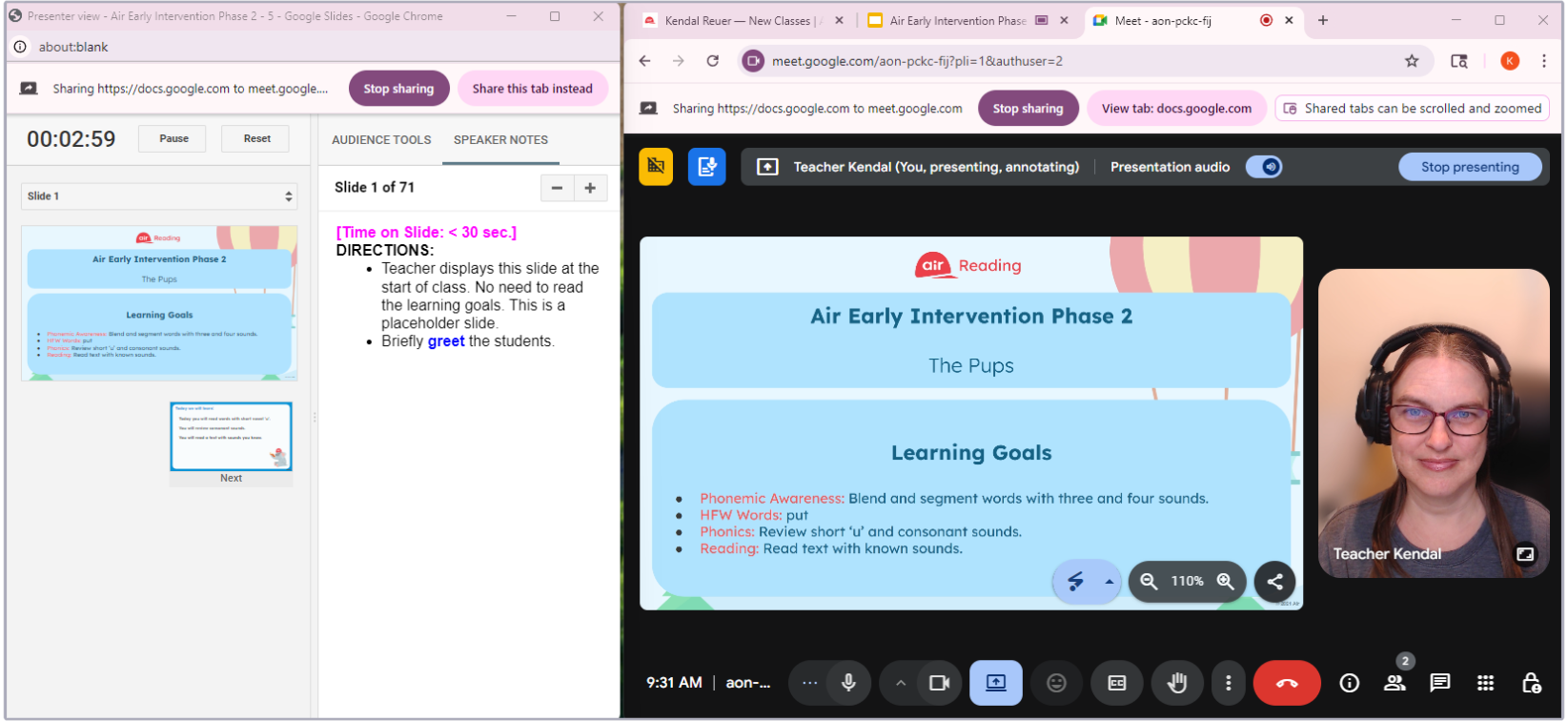
- Click Share Screen, then select the Chrome tab with the lesson slides (within the Chrome Tab setting, do not choose Entire Screen) > Click Share.
- You can now resize your browser to make it larger for easier viewing.
- As in a Zoom class, keep the Teacher Directions off to the side, next to the browser with Google Meet, so both are visible.
This allows you to maintain eye contact with your camera and engage with students while teaching. You may also consider setting up tab groups in your browser to organize lesson slides, especially for back-to-back classes.
Check out the full article on Tab Groups for more detailed information.
Step 4: Start the class on time and begin teaching
- Begin teaching the lesson as soon as at least one student has arrived.
- Teachers may choose to start a class early if students are in the waiting room—this can be helpful for troubleshooting tech issues or building rapport with students.
- Teachers are not required to admit students before the scheduled start time.
- Teach each class using Air Reading’s Direct Instruction Model of Teaching.
If no students attend the class:
- Please remain in the classroom for the entire duration of the class and record student attendance in the feedback form.
Check out the full article on Student No‑Show for more detailed information.
Step 5: Enter feedback
- After class, submit student feedback in the Class feedback tab in the Teacher Portal.
Checklist
For a downloadable checklist covering the recommended steps outlined in this article, check out: Classroom Logistics Checklist.
| Click here to go to Part 2 |
Was this article helpful?
That’s Great!
Thank you for your feedback
Sorry! We couldn't be helpful
Thank you for your feedback
Feedback sent
We appreciate your effort and will try to fix the article