
Tech Check Instructions - Part 3: Google Meet
Last updated: March 26, 2026
In the next part of the Tech Check, you will share the same lesson slides in Google Meet. This article provides detailed instructions for completing the Google Meet portion of your Tech Check. You can click the link at the bottom of the page to move on to the final part of this guide, which covers how to use waiting rooms for assessments.
Table of contents
Video: Sharing lesson slides in Google Meet
We suggest watching the video below for instructions on how to share your lesson slides in Google Meet and continue reading below for written instructions. Using the Google Chrome browser is recommended.
*Please note that as of March 26, 2026, the option to use one of the two approved virtual backgrounds in Google Meet is not shown in the video above because it was added after the video was filmed.
Overview
To pass the Google Meet portion of the tech check, the process includes demonstrating the ability to:
- Put the practice lesson slides in Presenter View.
- Remove any black space around the slides by resizing the browser.
- Open Google Meet in a new tab using your Air Reading Gmail account.
- Blur your background or use one of the two approved virtual backgrounds already available in Google Meet.
- Share the practice lesson slides using the “Chrome Tab” option.
- Position the Speaker Notes box next to the Google Meet window.
- Click to advance through the slides from the Speaker Notes box.
- Click on the clickable image to jump to another slide.
Step-by-step written instructions with pictures
Step 1: Put Google Slides into presenter view
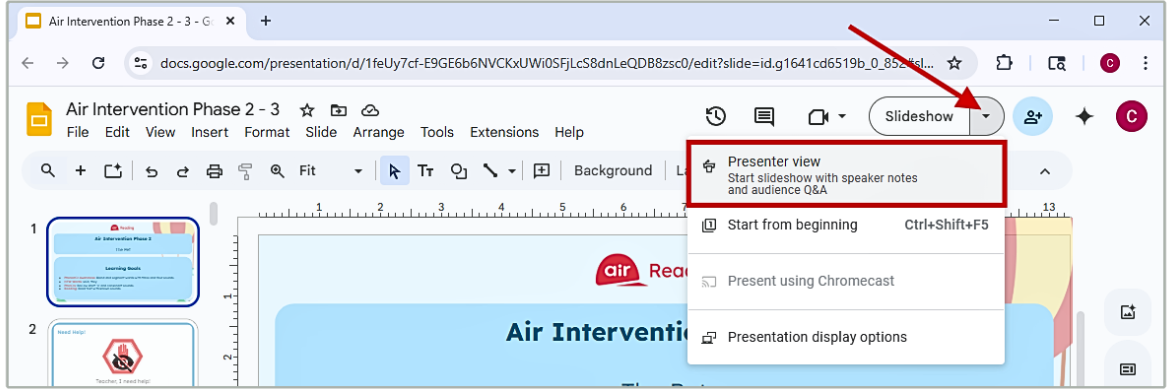
- Find the Slideshow button in the upper-right corner, next to the Share button.
- Click the dropdown arrow next to Slideshow.
- Click Presenter view to start the slideshow and view the speaker notes [Teacher Directions] separately from the lesson. This puts the Google Slides lesson in Presenter view so you can see the lesson and Teacher Directions side-by-side.
Step 2: Resize the slides
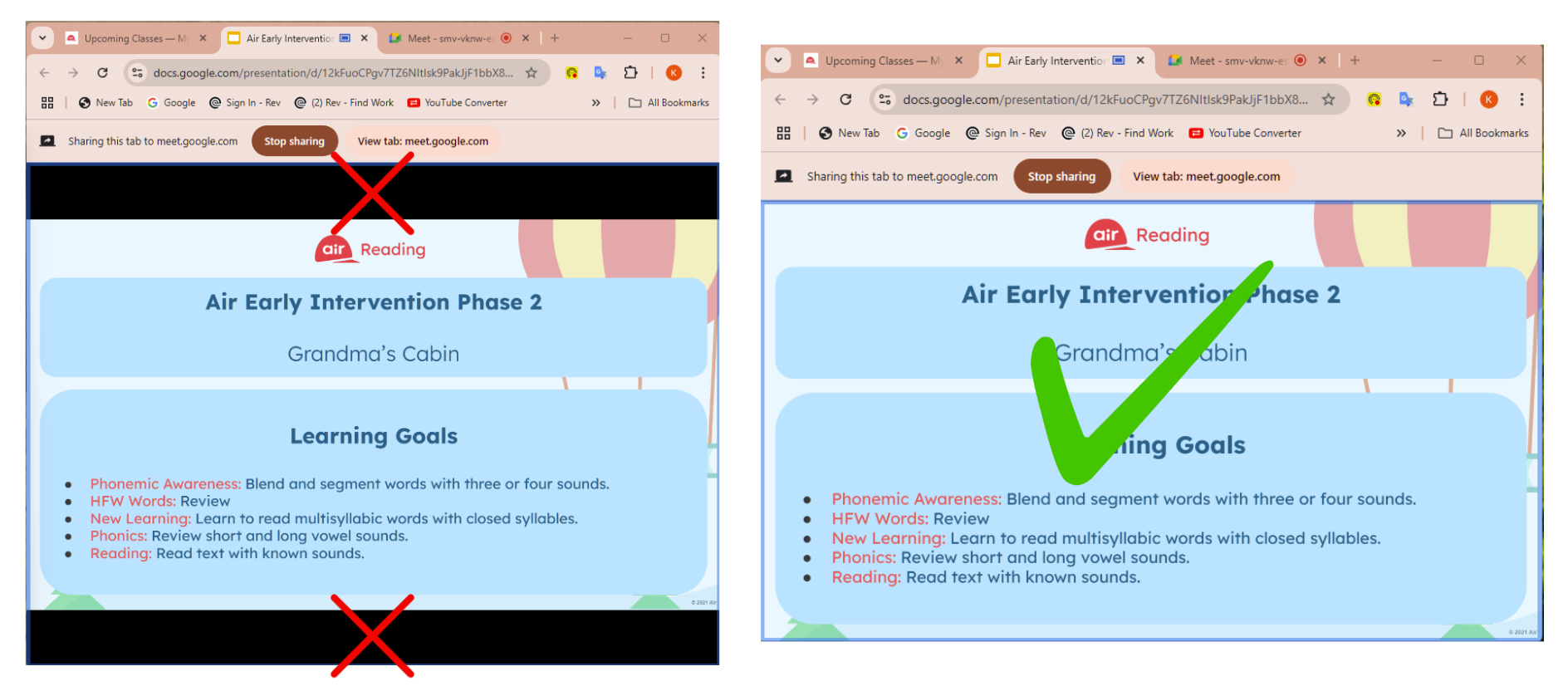
No black space should be visible on any of the sides around the lesson slides. Google Meet does not have the green share box and instead only has the option to share an entire tab. It is therefore important to eliminate any black space around the slides as this results in the lesson slides appearing smaller to the student.
You can remove the black space around the lesson slides by clicking and dragging the edges of the browser window until the lesson slides fill the entire browser window and there is no more black space.
Step 3: Arrange the browser windows side by side
- Just as you did for the Zoom portion of the Tech Check, you will resize both the lesson slides and the Teacher Direction's window so they sit side by side.
- We suggest that you position the Teacher Directions on the left and your lesson slides on the right.
Step 4: Open Google Meet
You will not need to do this when teaching an Air Reading class; this step is only for the Tech Check.
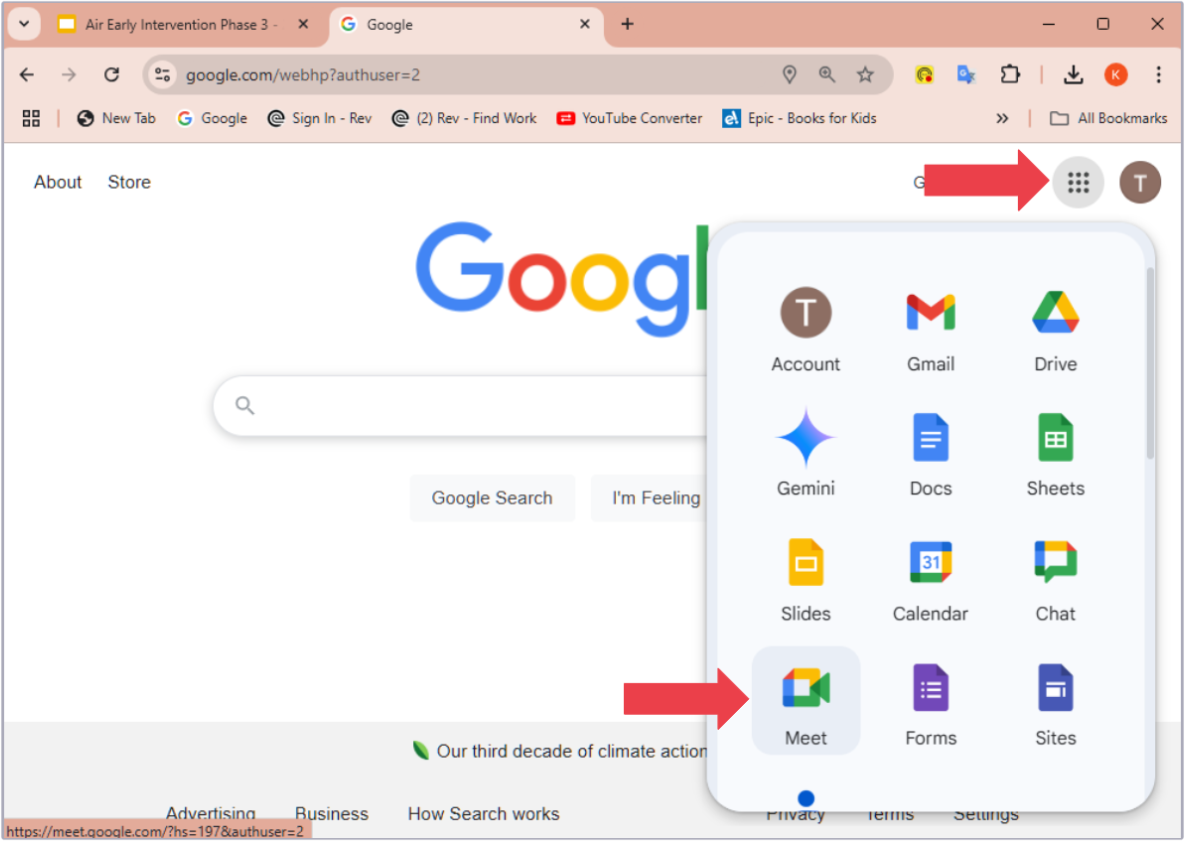
- Log into the Google account you use with Air Reading.
- Click the square made of 9 dots.
- Select Meet.
- Click New meeting.
- Click Start an instant meeting.
Step 5: Blur your background or use an approved virtual background
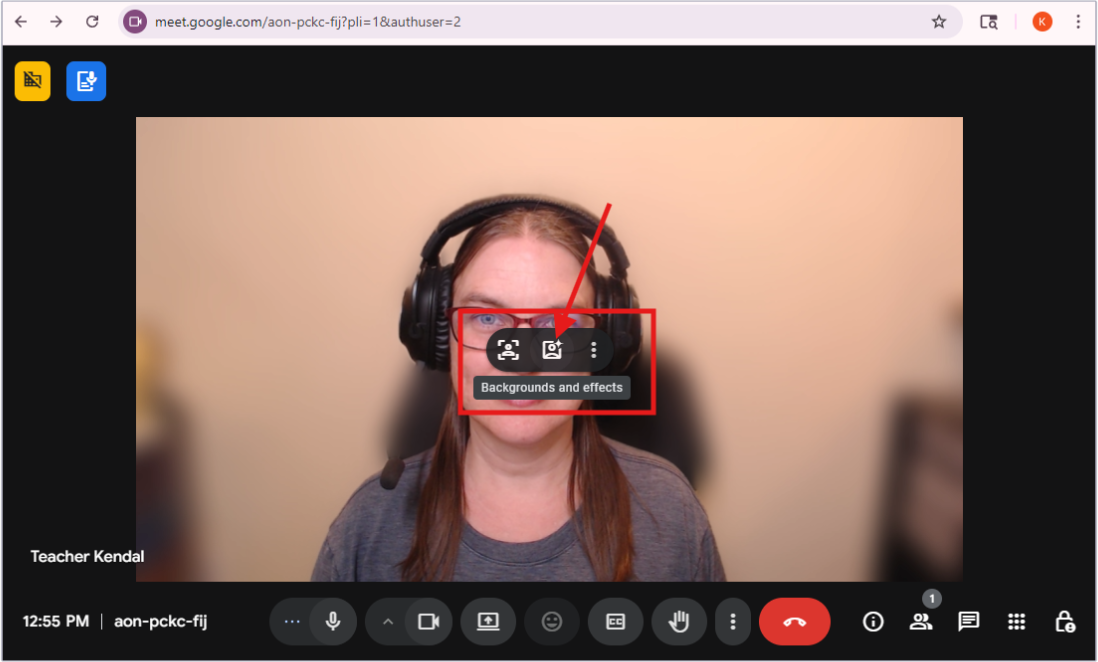
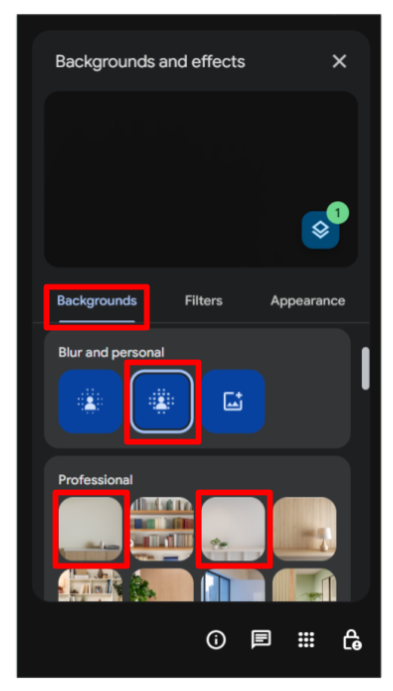
- Hover over your camera, and click the Background and effects button in the middle.
- In the pop-up window on the right, choose the second blur option or one of the two approved virtual backgrounds already available in Google Meet in the Backgrounds tab.
- Once you add the blurred background or choose one of the approved virtual backgrounds, it will be saved for all subsequent classes.
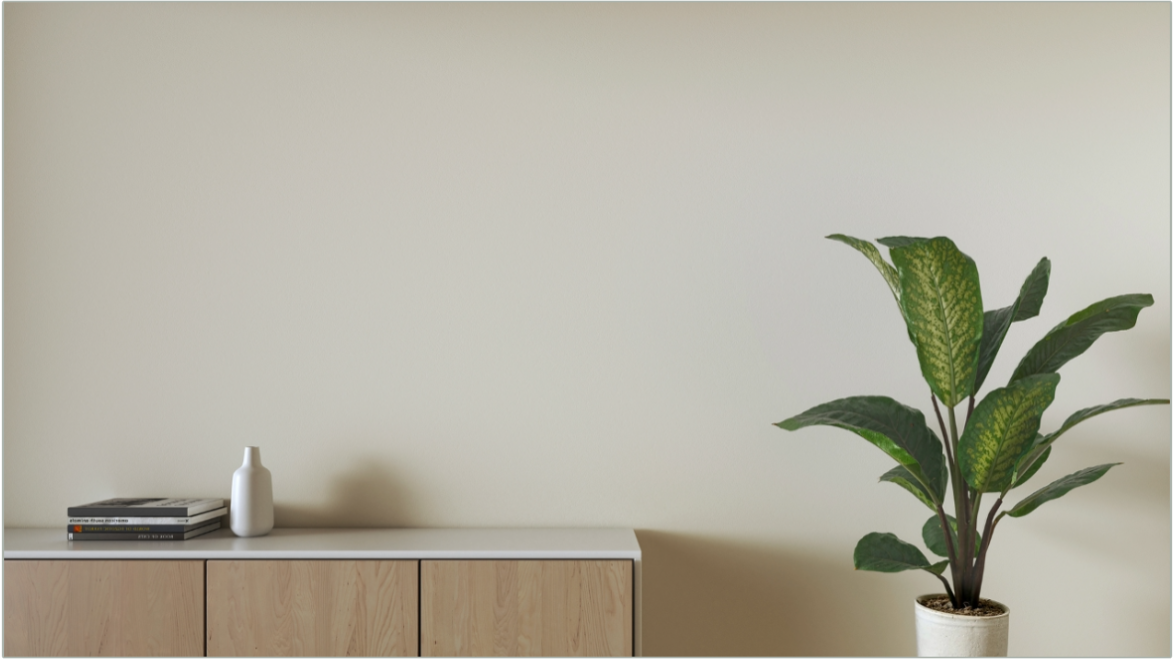
- If you choose to use a virtual background, please use only one of the two approved virtual backgrounds shown below.
- Note: You may see an option to upload your own personal background; however, this option will not appear when teaching an actual class with Air Reading.
 |  |
Step 6: Share the slides in Google Meet
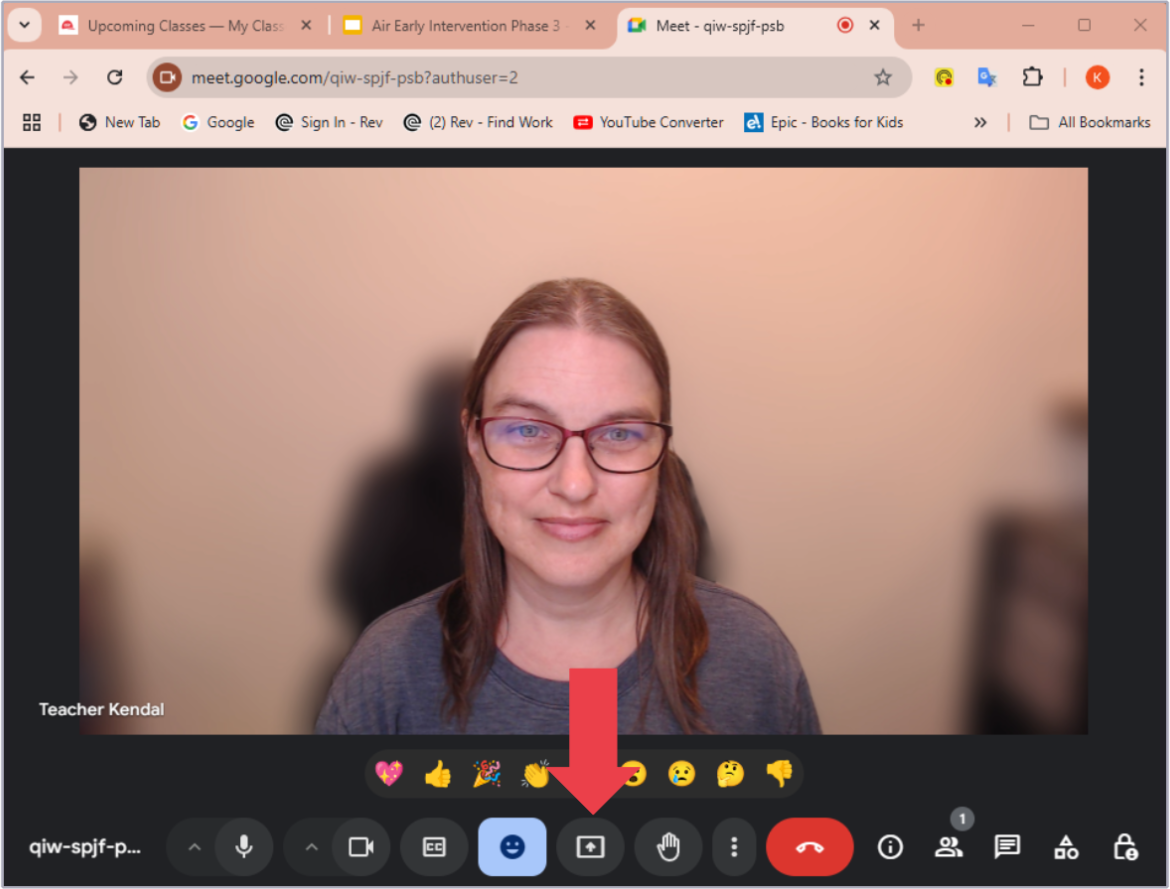
- Click the Share screen button along the bottom of the screen (the square with an upward arrow).
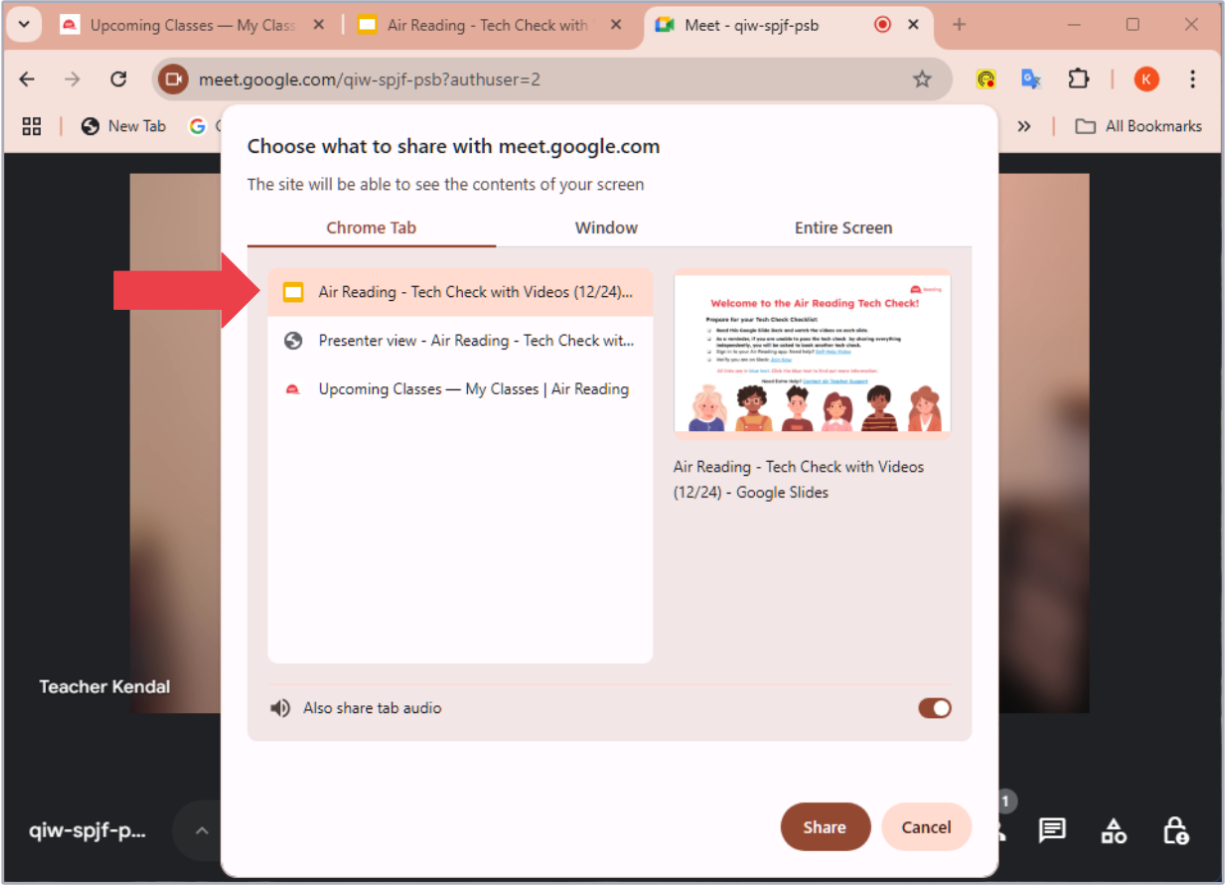
- Make sure the Chrome Tab option is selected.
- Click the Google lesson slides you want to share.
- You will see a preview of what will be shared on the right.
- After sharing the lesson slides, you may resize the browser again to make it bigger if needed. As long as you do not return to the lesson-slides tab, this will not affect the student's view (i.e., any black space that may appear for you as the teacher will not appear for the student).
 |
Note: Most computers automatically display the shared tab in the meeting. There is a small percentage of teachers for whom it may instead take you to the tab you are sharing (and away from the meeting tab). If this happens, confirm that there is no black space around the lesson slides, adjust if needed, and then return to the meeting tab.
Step 5: Advance the slides and click on the animated picture
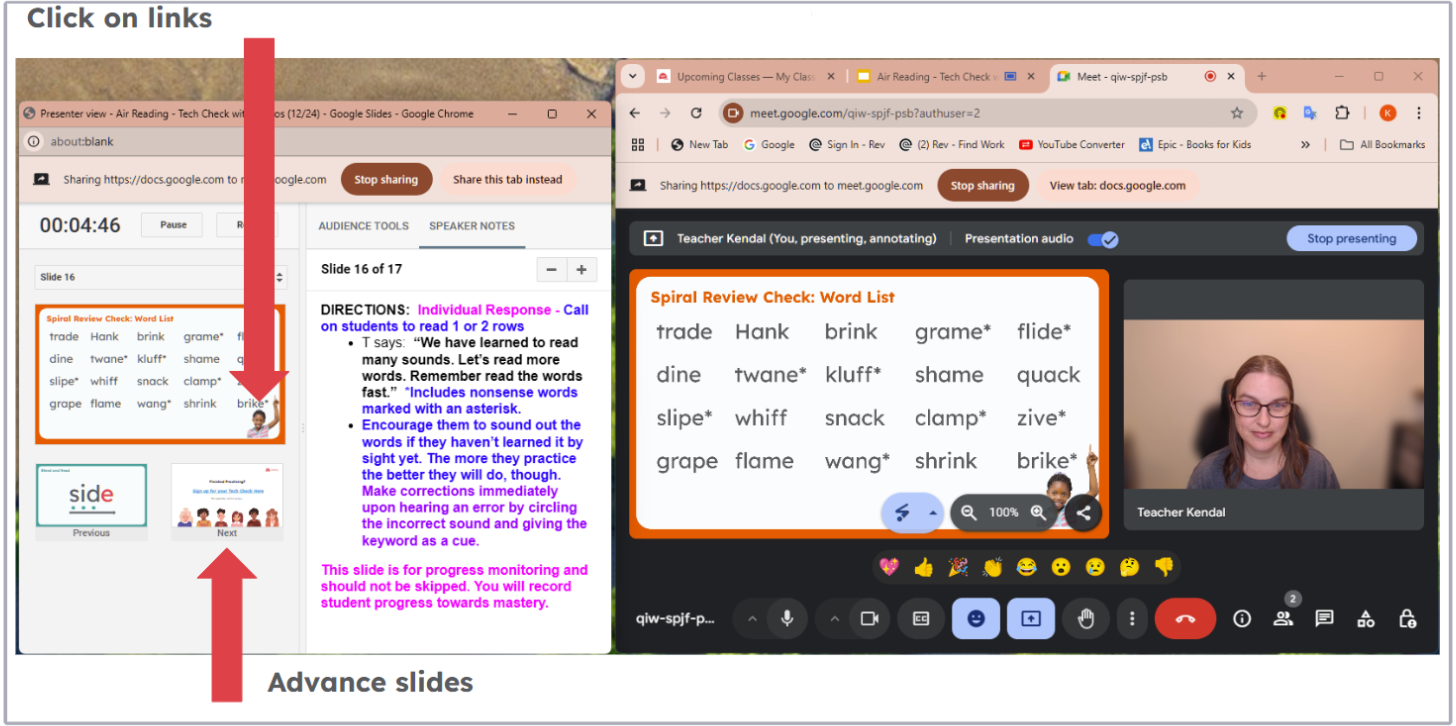
You can advance the slides by clicking on the preview in the Speaker Notes. Animated pictures such as the girl on the Spiral Review Check slide can also be clicked on from the Speaker Notes.
Note: All clicking in Google Meet must be done from the Speaker Notes window.
Annotations in Google Meet
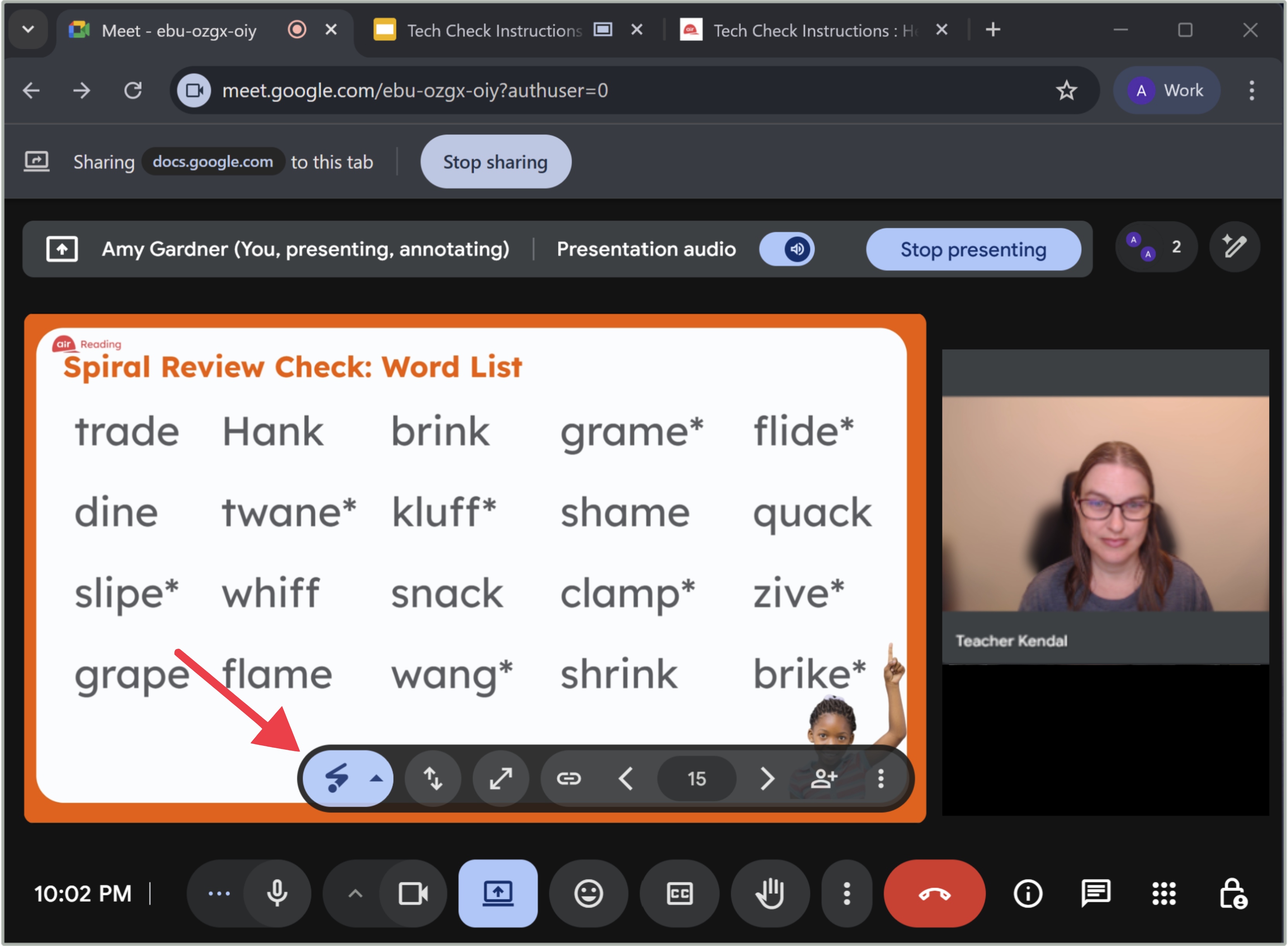
You will not be asked to annotate on the slides during your Tech Check as the option does not appear. However, when you teach an actual class on Google Meet for Air Reading, the special link provided will take you to a meeting that does have the option to annotate. It will appear as a blue oval on top of the shared slides (as pictured in the screenshot below).
| Go back | Tech Check Instructions - Part 4: Waiting Rooms |
Was this article helpful?
That’s Great!
Thank you for your feedback
Sorry! We couldn't be helpful
Thank you for your feedback
Feedback sent
We appreciate your effort and will try to fix the article