
Tech Check Instructions - Part 1: Getting Started
Last updated: January 24, 2026
This article provides an overview of the Tech Check process, the basic technology requirements for teaching with Air Reading, helpful resources to get you started, and a brief tutorial on how to log into your Air Reading Zoom account. Click the link at the bottom of the page to continue on to the next step of the Tech Check Instructions.
Table of contents
- Overview: Tech Check at a glance
- Technology requirements
- Helpful resources
- Log into your Air Reading Zoom account
Overview: Tech Check at a glance
- Become familiar with Slack, the Help Center, and the Air Reading App.
- Learn how to log into your Air Reading Zoom account.
- Review how to share the lesson slides in Zoom.
- Review how to share the lesson slides in Google Meet.
- Learn how to use the Zoom Waiting Room and Google Meet Waiting Room.
- Practice sharing slides 12-16 in the Tech Check Instructions slide deck in both Zoom and Google Meet.
As a reminder, if you are unable to pass the Tech Check by sharing everything independently (Zoom and Google Meet), you will be asked to book another Tech Check.
Technology requirements
During the Tech Check, we are looking for the following basic requirements to help ensure you are set up for success in teaching with Air Reading:
- Stable internet connection: At least 20 Mbps download and 8 Mbps upload (SpeedTest)
- Laptop or desktop computer: No tablets, iPads, or phones
- Appropriate background: Blurred background or one of the preloaded Air Reading virtual backgrounds which are available in Zoom when you sign in with your Air Reading Gmail account
- Good camera angle: Eyes should be looking forward into the camera
- Headset: Recommended, ideally with a microphone, to help students hear phonics clearly
Helpful resources
At Air Reading, we utilize Slack, our online Help Center knowledge base, and our teacher portal—the Air Reading App—to provide teachers with extensive information regarding your classes, the curriculum, scheduling, payment, as well as provide general community and support. Find out more about these helpful resources and how to start using them today:
Slack
- Confirm you are on Slack: Join Now.
- Check for important updates in the “air-teacher-announcements” channel.
- Connect with other teachers in the “air-teacher-community” channel.
- Update your Slack profile name (as listed in the App) and photo.
Air Reading Help Center
- Log in using the same Gmail account you use for Air Reading: Help Center.
- Use the Knowledge Base to learn more about Air Reading.
- If you do not find the answers to your questions in the Knowledge Base, please Submit a Ticket.
Air Reading App
- Sign into the Air Reading App using the same Gmail account you use for Air Reading. For help signing in, check out the quick video, How to Log In to the Air Reading App.
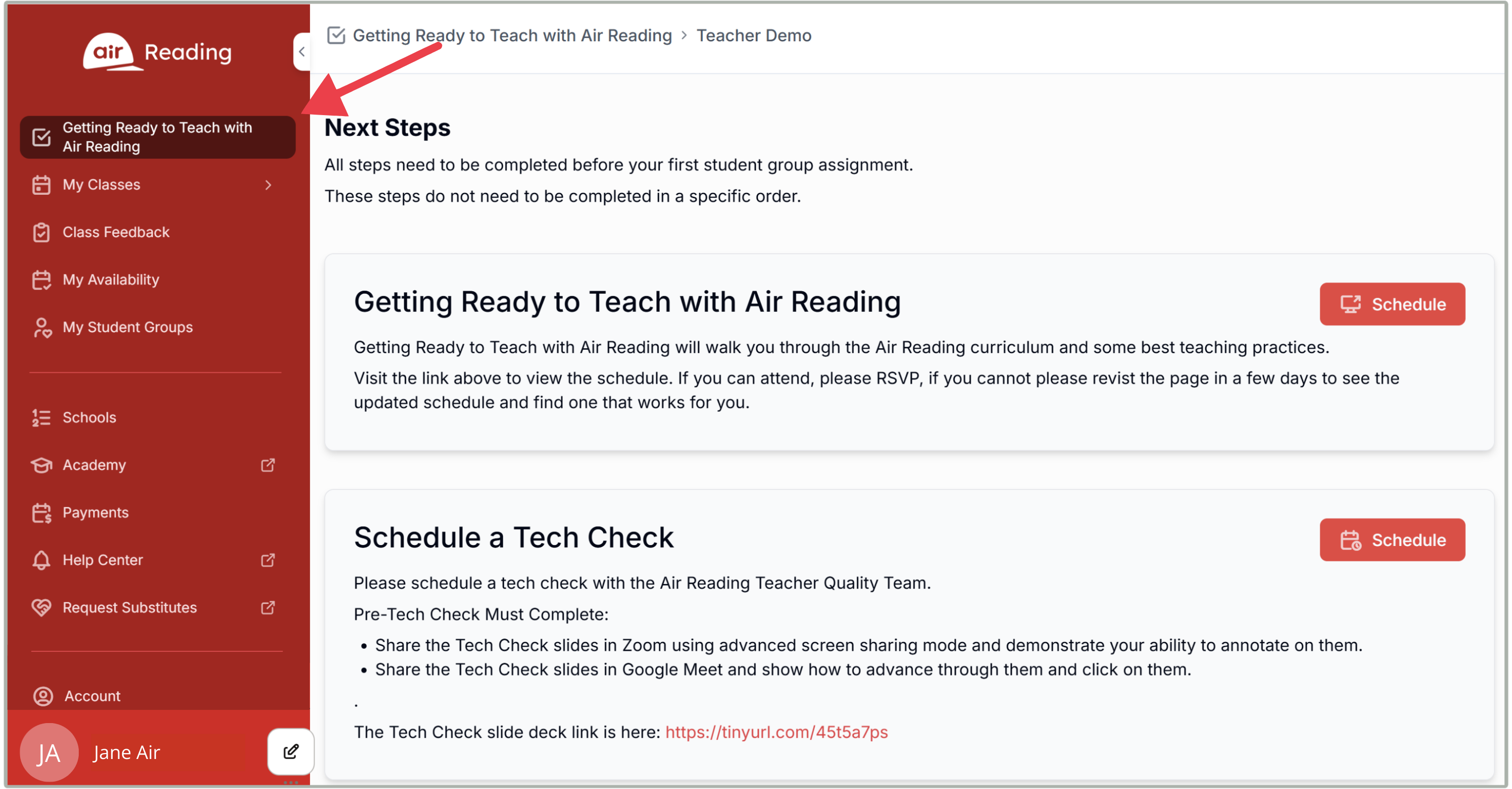
- Navigate through the Air Reading App by clicking the tabs on the left side of the screen. Here is an overview of the tabs:
| Getting Ready to Teach with Air Reading | will disappear once you complete all the steps |
| My Classes | information about your schedule and classes once you are assigned classes |
| Class Feedback | submit feedback here after every class |
| My Availability | mark your availability for teaching |
| My Student Groups | detailed information about each class you are assigned |
| Schools | directory of schools and important dates (diagnostic testing, start and end dates, holidays) |
| Academy | the Help Center knowledge base |
| Payments | pay breakdown, payment schedules |
| Help Center | Help Center knowledge base, submit a ticket, contact support |
| Request Substitutes | request a substitute |
| Account | contact and banking information |
- Keep track of your progress through the Air Reading Orientation process by clicking on the top tab, Getting Ready to Teach with Air Reading. These are the steps you will need to complete before you can begin teaching classes.
Log into your Air Reading Zoom account
After signing your contract with Air Reading, you will receive an email from Zoom inviting you to connect your Gmail account with Zoom. Completing this step will help ensure a smooth start with logistics and scheduling. Submit a ticket if you need this resent.
We encourage you to watch the video below for instructions on how to log into your Air Reading Zoom account. For detailed written instructions and pictures, please visit the article Zoom: Logging in to Your Air Reading Account.
| Go back | Tech Check Instructions - Part 2: Zoom |
Was this article helpful?
That’s Great!
Thank you for your feedback
Sorry! We couldn't be helpful
Thank you for your feedback
Feedback sent
We appreciate your effort and will try to fix the article