
Step 1: Download or Update Zoom
Last updated: February 17, 2026
This article will guide you through downloading and updating the Zoom Workplace desktop app, which is required for recording your demo.
Table of contents
How to download Zoom
To record your demo, you will need the Zoom Workplace desktop app. If you do not have a Zoom account, you can sign up for free here.
Important: Zoom on Chromebooks does not support recording, so you will need a Windows or Mac desktop or laptop.
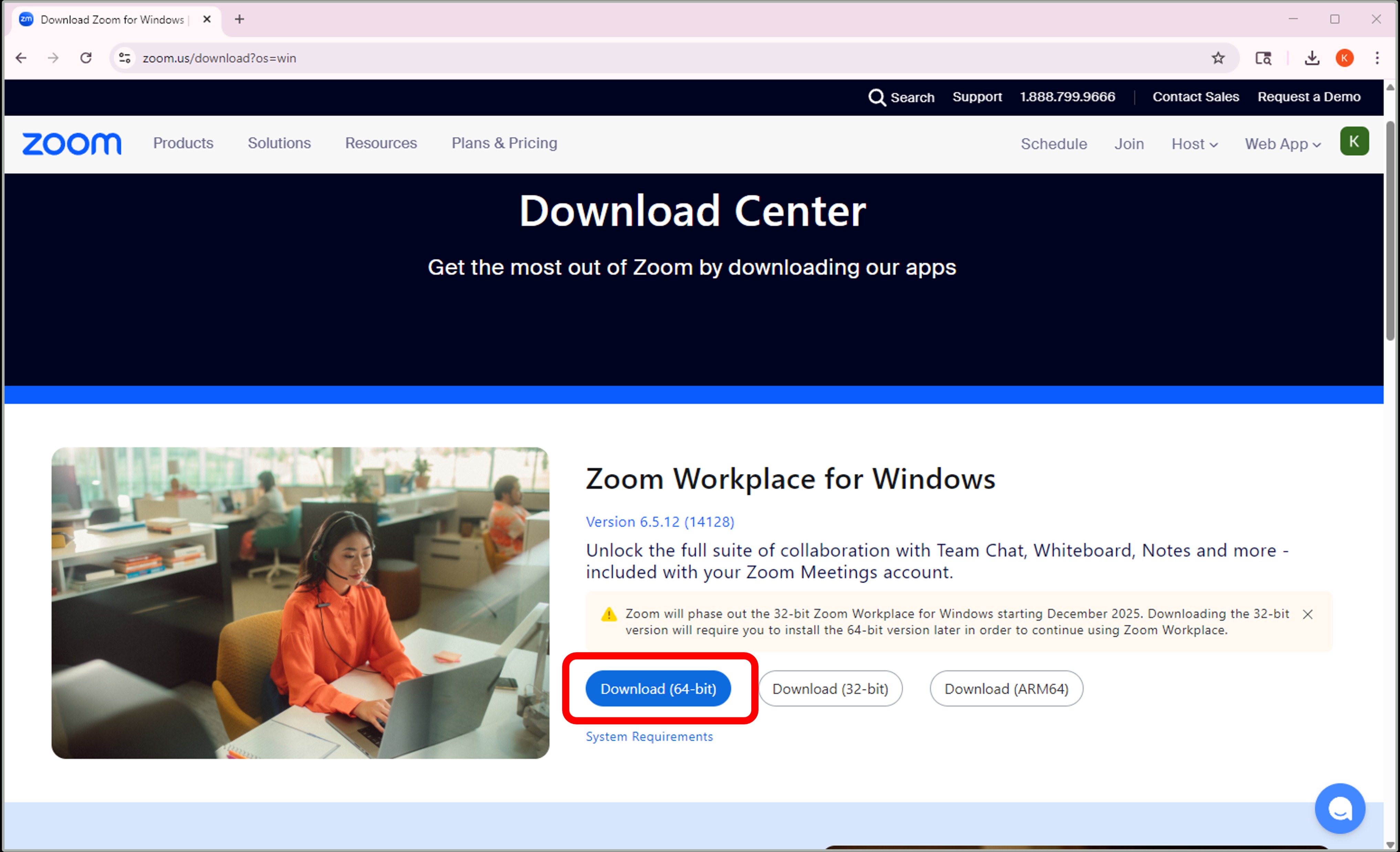
To download the app for a Windows computer, go to the Zoom download center and select "Download (64-bit)".
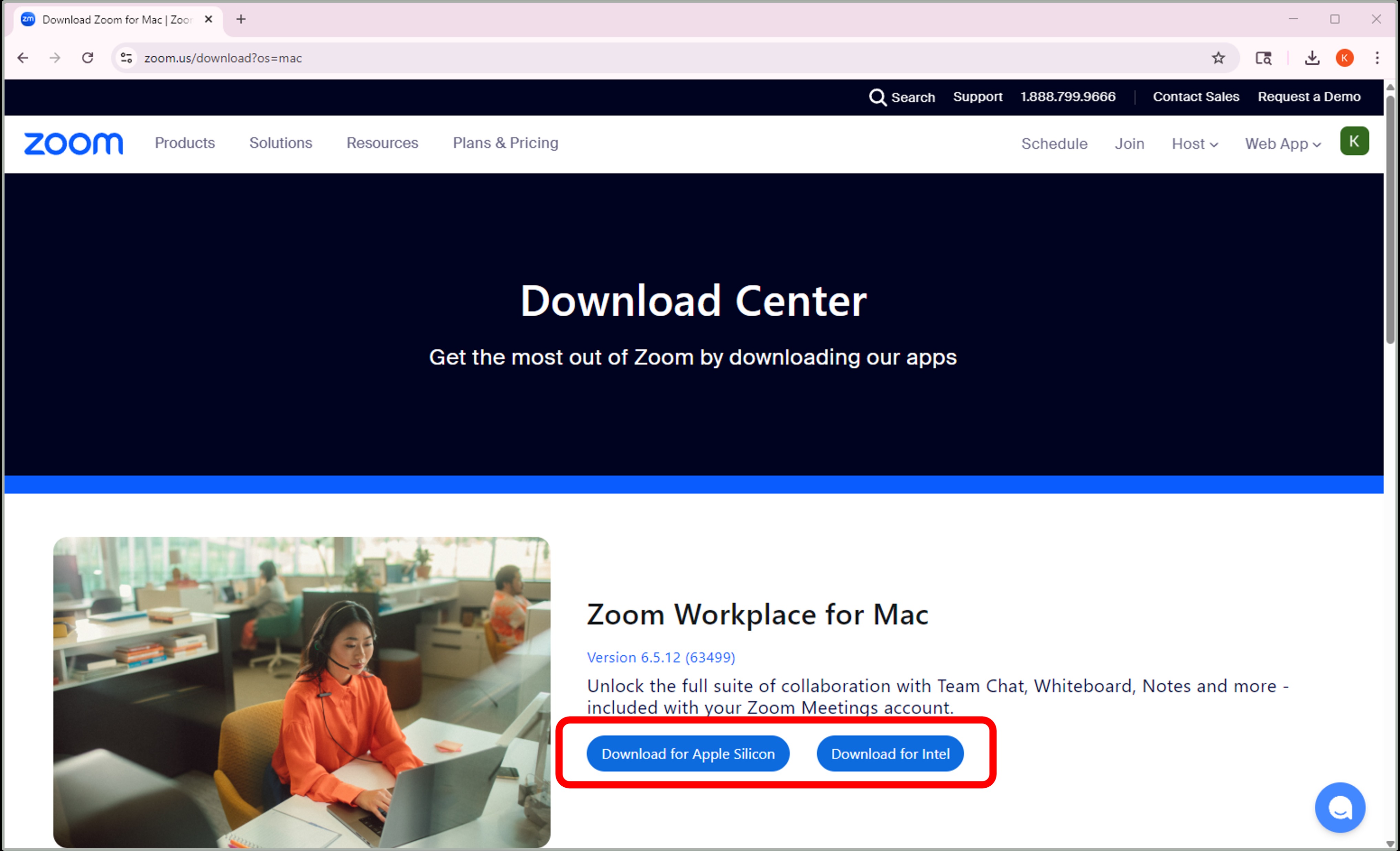
To download the app for a Mac, go to the Zoom download center for Macs and select either "Download Apple Silicon" or "Download Intel," depending on your Mac's processor.
Video: How to download the Zoom Workplace app
Windows download link
To download the Zoom app for a Windows computer, go to the Zoom download center and select "Download (64-bit)"
Mac download link
To download the Zoom app for a Mac, go to the Zoom download center for Macs and select either "Download Apple Silicon" or "Download Intel" depending on the type of Mac you are using.
How to update Zoom
If you already have the Zoom app installed, please ensure it is updated to the latest version.
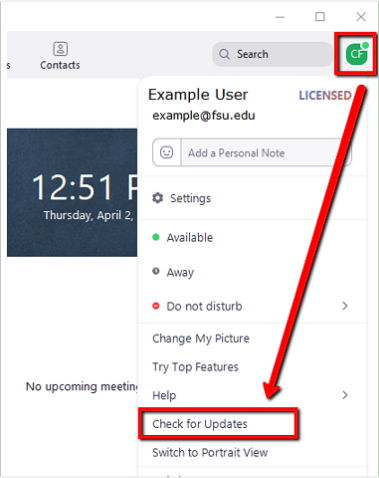
Option 1: Update directly from the app
With the Zoom app open, click on your profile image in the top-right corner.
Select Check for Updates.
Option 2: Uninstall and reinstall Zoom
Some devices will not allow you to update Zoom directly from the app. Instead, you may see a message pop up, similar to the one pictured below, when trying to open Zoom.
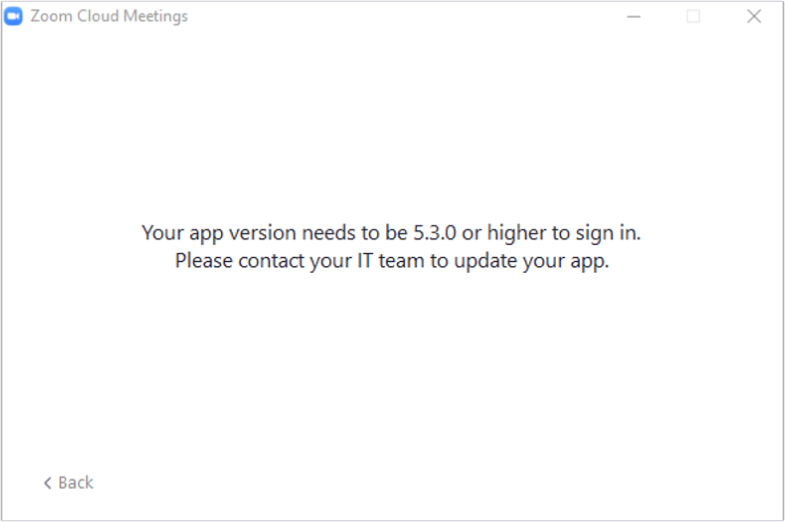
When you see this message, you will need to uninstall Zoom from your computer and then reinstall it from the Zoom website. Here are the links to reinstall Zoom:
Was this article helpful?
That’s Great!
Thank you for your feedback
Sorry! We couldn't be helpful
Thank you for your feedback
Feedback sent
We appreciate your effort and will try to fix the article