
Step 4: Record Your Demo
Last updated: September 5, 2025
This article will guide you through the process of recording your demo lesson using Zoom.
Video: Recording the demo
Watch the video below for instructions on how to record your demo and continue reading below for written instructions with pictures.
Written instructions
Step 1: From the Zoom toolbar, click Record to begin. Ensure your camera and microphone are on so we can see and hear you.
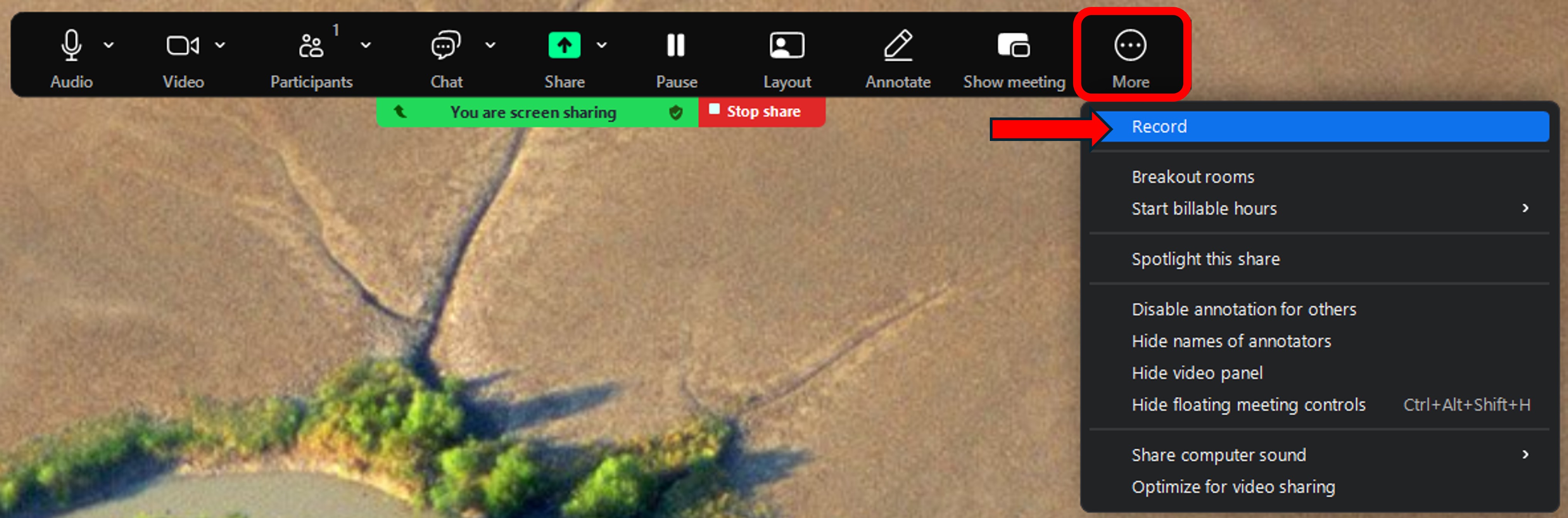
Step 2: When you are finished recording, click Stop Share.

Step 3: Then click Stop Recording and End to finish recording.

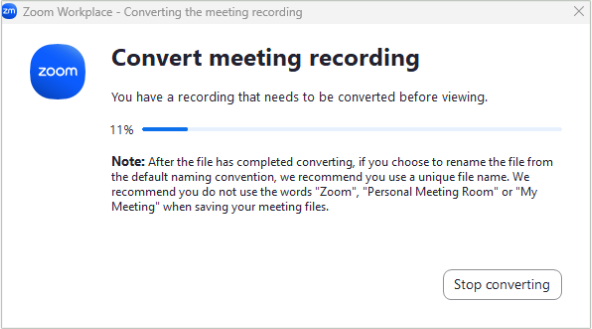
Step 4: After the recording has converted to 100%, find the .mp4 file on your computer. You can rename it with your full name before submitting.
Remember to watch your recording before submitting to check that your audio is clear and both you and the lesson slides are visible in the recording.
Was this article helpful?
That’s Great!
Thank you for your feedback
Sorry! We couldn't be helpful
Thank you for your feedback
Feedback sent
We appreciate your effort and will try to fix the article