
Step 3: Share the Demo Slides in Zoom
Last updated: April 1, 2026
This article will guide you through starting a Zoom meeting and sharing your demo lesson slides so that only the lesson is visible to viewers.
Video: Start a Zoom meeting and share the lesson slides
Watch the video below for instructions on how to start a Zoom meeting and how to share your lesson slides using the Portion of the Screen sharing option. Continue reading below for written instructions with pictures.
Written instructions
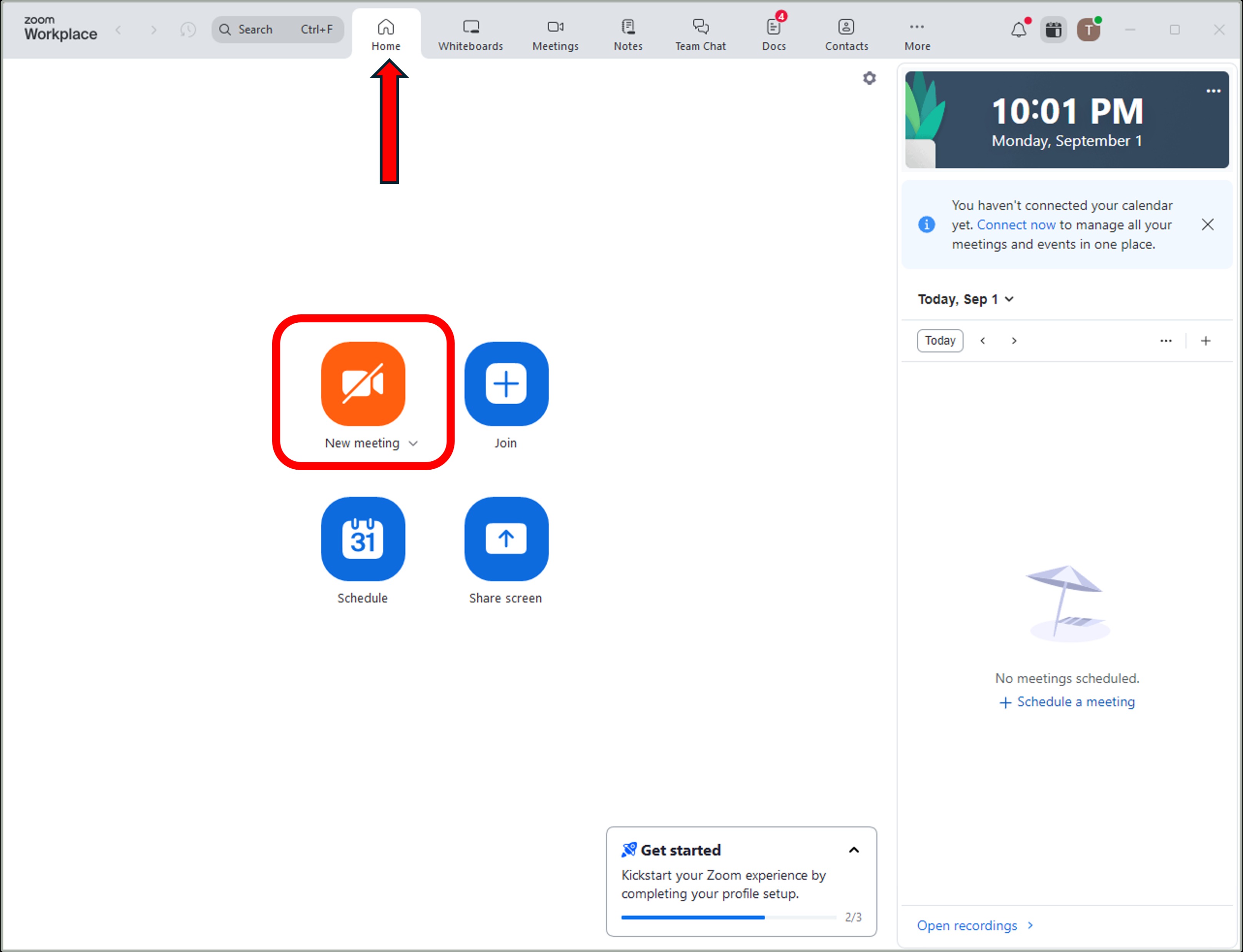
Step 1: Open the Zoom Workplace App and select New Meeting.
Step 2: Click the green Share button.

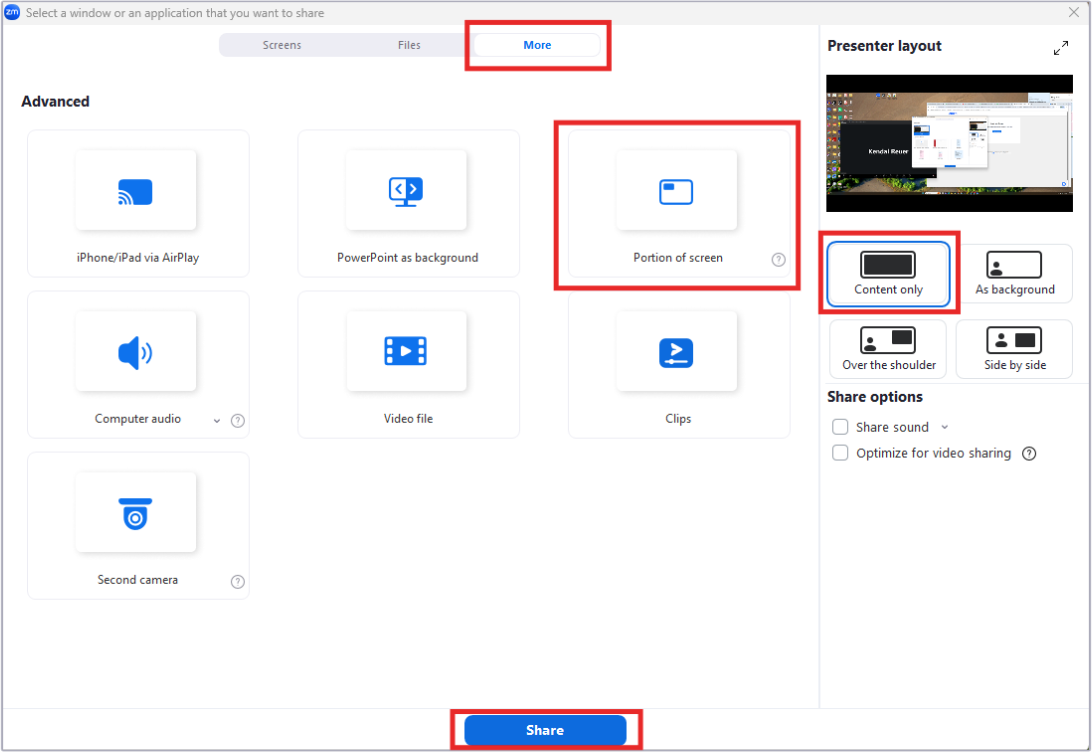
Step 3: Go to the Advanced tab and select Portion of Screen. Depending on the version of Zoom you are using, you may see More instead of Advanced. Make sure the Content only layout is selected and then click Share. A green box will appear on your computer screen.
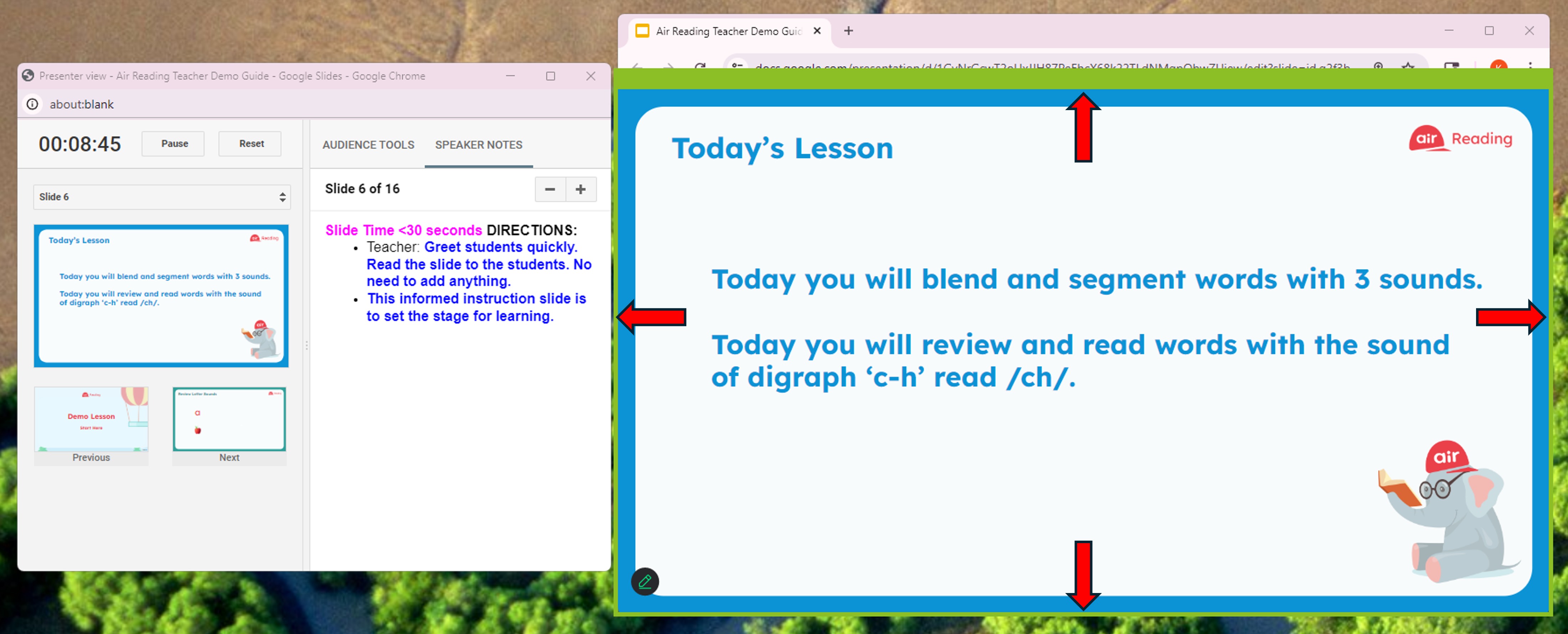
Step 4: Move and resize the green box to fit snuggly around your lesson slides only.
Was this article helpful?
That’s Great!
Thank you for your feedback
Sorry! We couldn't be helpful
Thank you for your feedback
Feedback sent
We appreciate your effort and will try to fix the article