
Step 2: Put Demo Lesson Slides in Presenter View
Last updated: September 9, 2025
This article will guide you through preparing your lesson slides and script for your demo recording.
Video: Prepare your lesson slides and script
Before recording your demo, open the demo lesson slides in Presenter View. Watch the video below for instructions on how to do this and continue reading below for written instructions with pictures.
Written instructions
Step 1: Put lesson slides into Presenter View
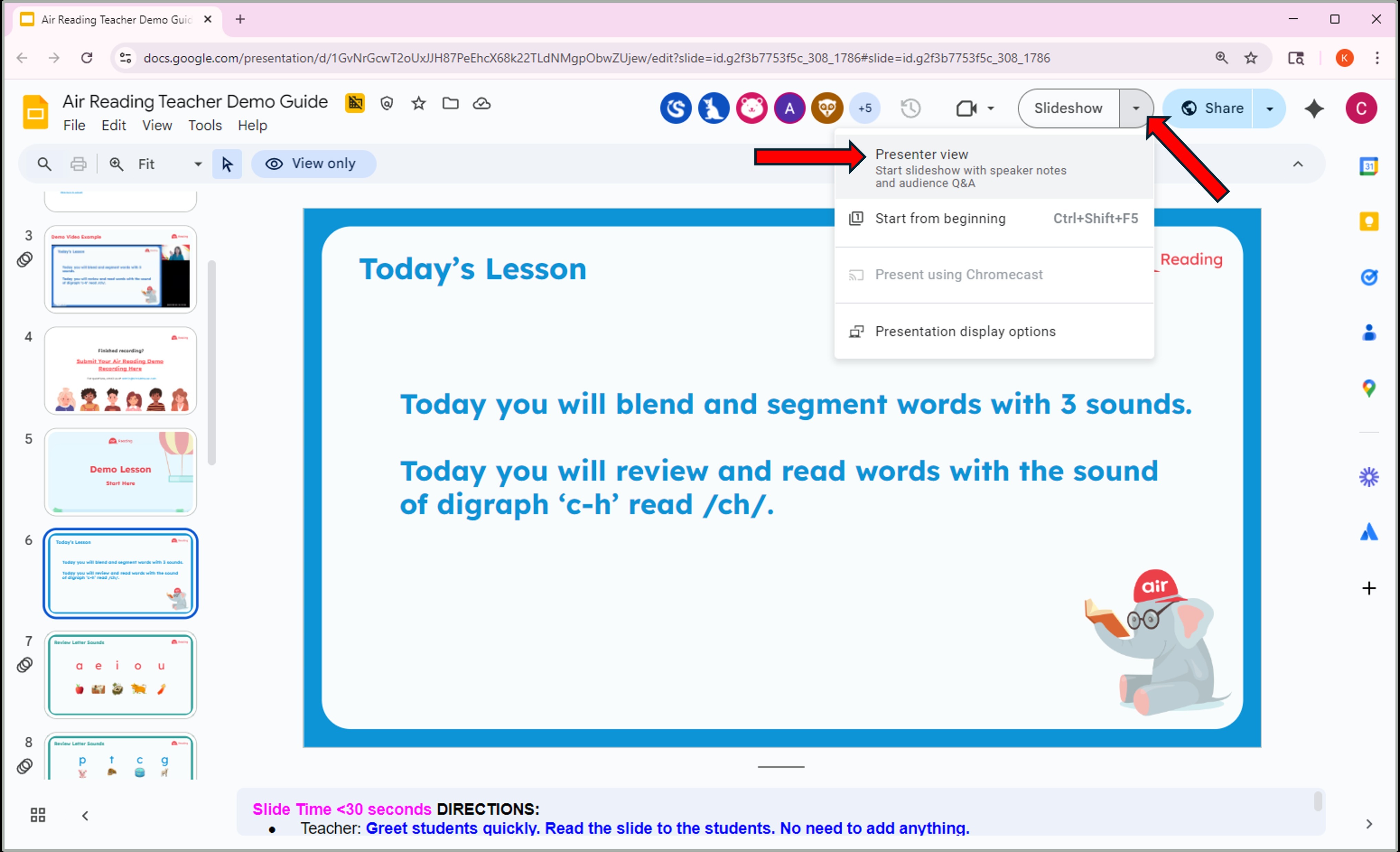
To prepare your lesson slides and script, click the down-arrow next to the Slideshow button and select Presenter View. The lesson slides will appear in one window, and your script (Teacher Directions) will appear in another.
Step 2: Position the two windows
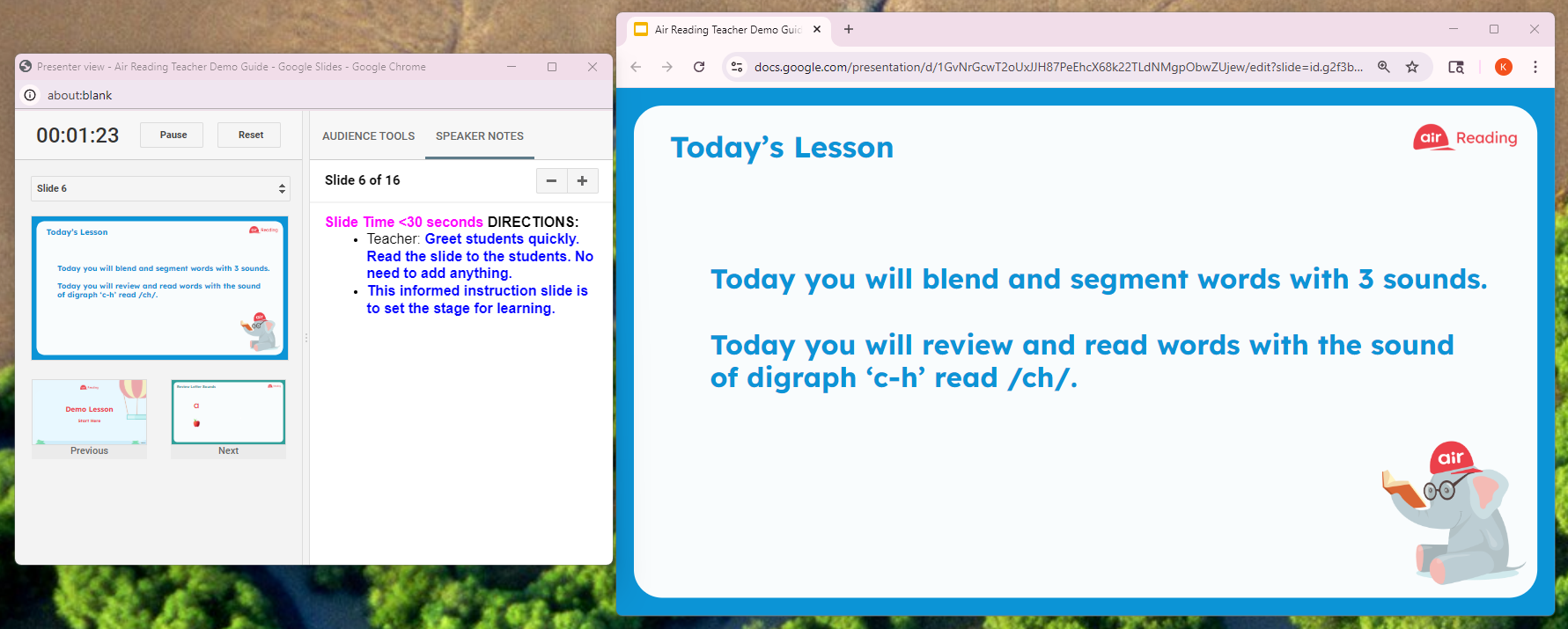
Position these two windows side-by-side on your screen. You may need to move and resize the boxes to fit them both on your screen.
Was this article helpful?
That’s Great!
Thank you for your feedback
Sorry! We couldn't be helpful
Thank you for your feedback
Feedback sent
We appreciate your effort and will try to fix the article