Audio Not Working?
Last updated: February 17, 2026
It is important that we can hear you clearly in your demo recording. If you are audio is not working or is not clear, use these troubleshooting tips.
Solutions
Try the troubleshooting tips outlined below to ensure that your audio is working properly for your demo recording.
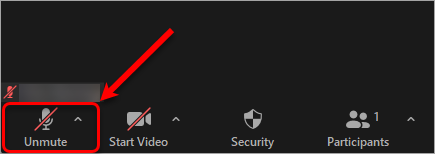
Tip #1: Check mute settings
- Make sure the microphone is not muted (click the microphone icon).
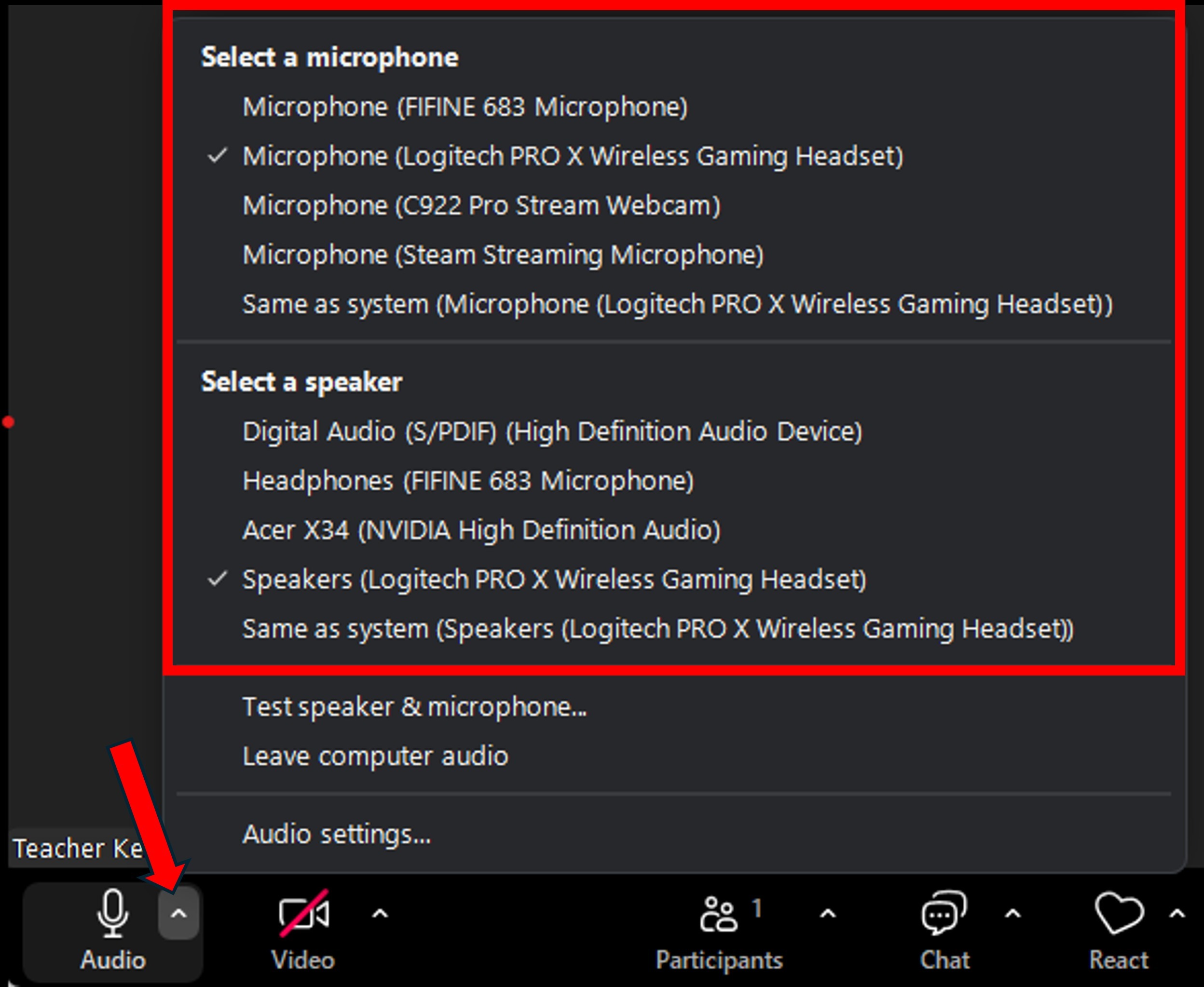
Tip #2: Choose the correct audio devices
- Click the arrow (^) next to the microphone icon.
- Select the correct microphone and speaker from the list.
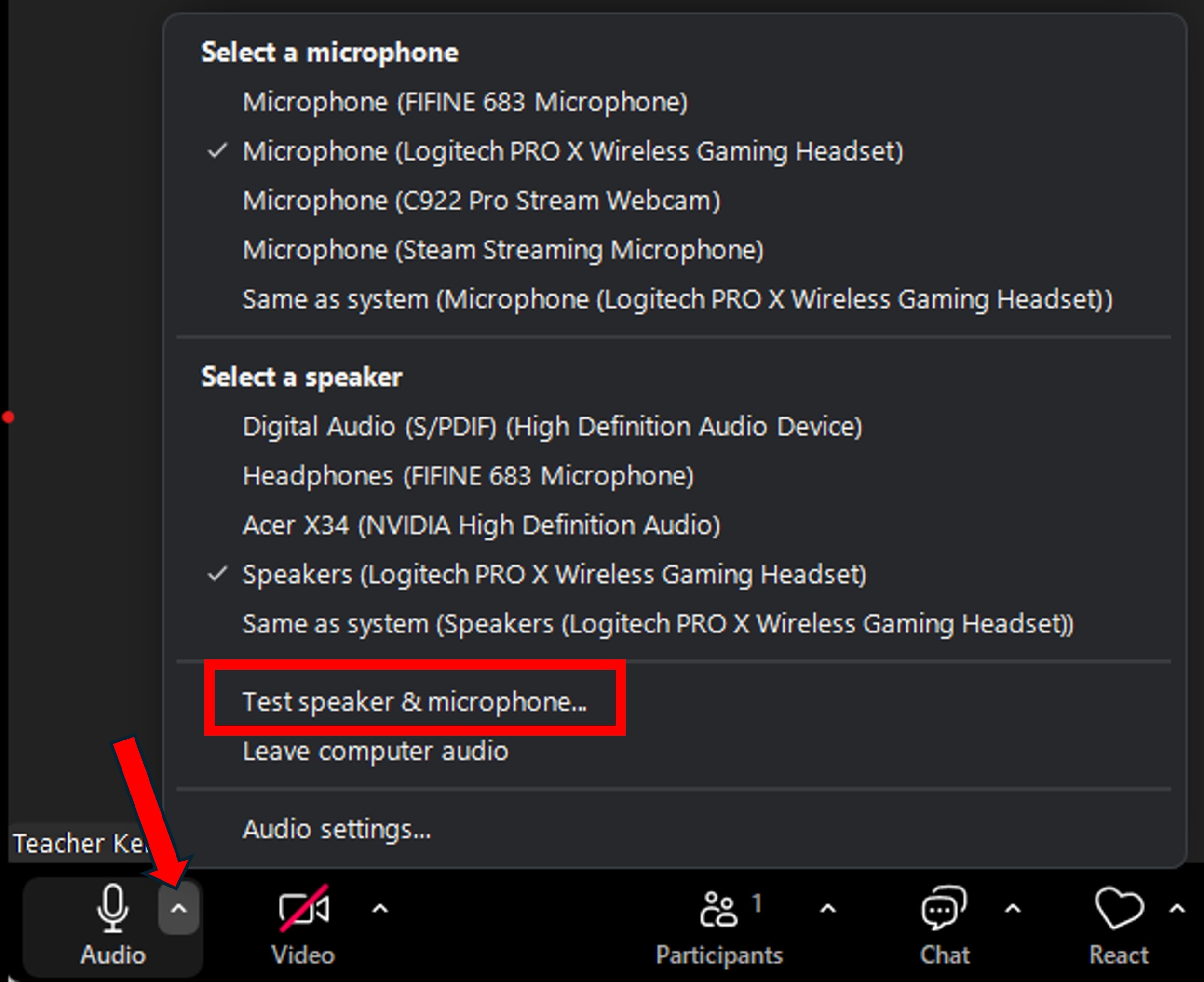
Tip #3: Test your audio
- Click the arrow (^) next to the microphone icon.
- Select the option to Test Speaker & Microphone.
Tip #4: Check system volume
- Ensure your system (computer/headset) volume is turned up and not muted.
- Confirm that any external headsets or speakers are connected correctly.
Tip #5: Use headphones to avoid echo
- If you hear an echo or feedback, use headphones instead of your computer's speakers.
Tip #6: Unplug headset
- Unplug and then replug the external microphone or headset.
- Plug the headset into a different connection on your computer.
Was this article helpful?
That’s Great!
Thank you for your feedback
Sorry! We couldn't be helpful
Thank you for your feedback
Feedback sent
We appreciate your effort and will try to fix the article