
Can Not Hear Some Sounds Clearly?
Last updated: April 1, 2026
The default audio settings for Zoom include noise suppression. This can cause soft (unvoiced) sounds to be difficult to hear in your demo recording. Use the following guide to change the audio settings to allow these sounds to be more clear.
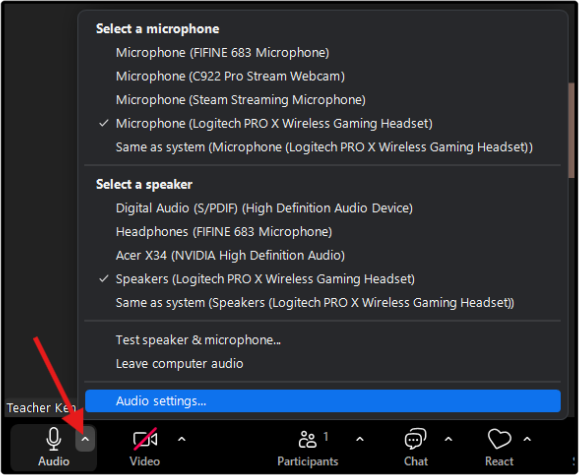
Step 1: Open the audio settings
- Click on the up arrow on the Audio button, and select Audio settings.
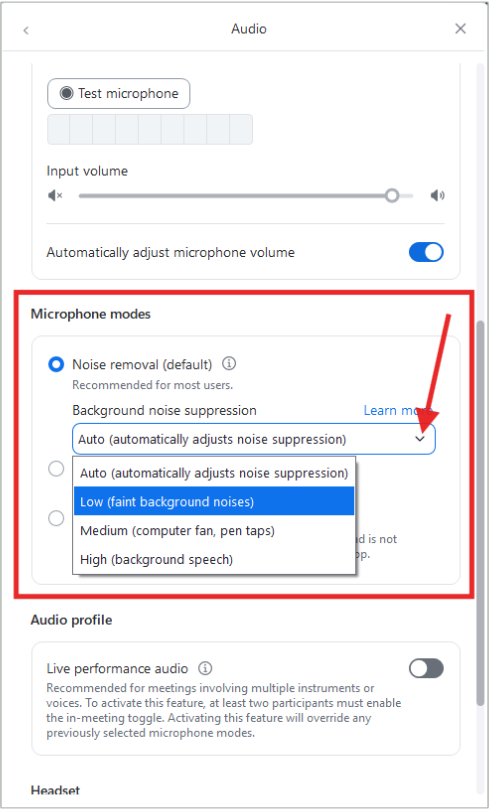
Step 2: Adjust the Microphone modes
- Scroll down to the Microphone modes section.
- Change the Background noise suppression option to Low (faint background noises).
Was this article helpful?
That’s Great!
Thank you for your feedback
Sorry! We couldn't be helpful
Thank you for your feedback
Feedback sent
We appreciate your effort and will try to fix the article